I ran into a couple of problems while trying to install the new LTS on my HPQ TC4400 laptop.
It had the 12.04 LTS installed, and had the home directory on a separate partition.
1. problem: no booting from pendrive
I tried different pendrives (2, 4, 8 GB), different USB slots (there are 3 on my machine) and different Ubuntu versions (12.04, 14.04, 16.04).
The problem I ran into is this:
gfxboot.c32: not a COM32R image
So first I tried to create startup disks on my desktop 12.04 on different pendrives with 16.04 and 14.04 images. They all resulted in this error. I went with the "live" command for 16.04. But one pendrive did not even start up the live session, while another did. Once I was in live, I tried to install 16.04, with the same distribution of the hard drives as I had before. It seemed to be okay. However when I started it and logged in, the system never loaded. Instead I got this disrupted background image flashing in different resolutions for until I had enough and turned off the machine.
Next I tried creating the startup discs on the 16.04 live session. The 14.04 pendrive booted alright compared to the one created on 12.04, but then the installation failed, and then booting also wasn't smooth anymore.
Next I reinstalled the 12.04, however it had issues with settings already existing on the home partition. The system did not load properly throwing errors in ma face.
Luckily I just got a spare 500GB hard drive, switched it with the old one and went again for 16.04 with the strange boot interface typing "live" in, and then installing from the live session.
It turned out okay so far.
My conclusion is that the settings in the home partition somehow interfered with the newly installed OSs, but really I have no clue what happened and why.
2017. február 19.


2016. szeptember 22.
Share network between VirtualBox Ubuntu 16.04 Guest and Windows 10 Host
When you create a new VirtualBox image, the networking will be set to NAT, which is good for reaching the internet.
However, when you want to reach the network if the Host OS, you'll have to set the Network Setting to Bridged Adapter.
Open VirtualBox --> right click on the image --> Settings --> Network -->
set "Attached to" to Bridged Adapter.
I only investigated afterwards, but I managed to reach the Host's http://localhost/ from the Guest by connecting to the Ethernet IPv4 address of the host.
On the windows host, open the command line, and run
Read more on VirtualBox networking modes.
However, when you want to reach the network if the Host OS, you'll have to set the Network Setting to Bridged Adapter.
Open VirtualBox --> right click on the image --> Settings --> Network -->
set "Attached to" to Bridged Adapter.
I only investigated afterwards, but I managed to reach the Host's http://localhost/ from the Guest by connecting to the Ethernet IPv4 address of the host.
On the windows host, open the command line, and run
ipconfig here you'll find your Ethernet IPv4 address. Run something on localhost, and you should now reach the site from the Guest on this ip address.Read more on VirtualBox networking modes.
2016. július 15.
Shared Folders setup on Ubuntu 16.04 as a VirtualBox Guest
- On Ubuntu 18.04 guest with VirtualBox 6.0.8: install build tools first:
- sudo apt-get install build-essential gcc make perl dkms
- reboot
- Install the Virtual Box Guest Addition
- from vbox menu: "Devices" --> Insert Guest Addition CD Image...
- If you get "failed to connect to the virtualbox kernel service access denied" error message after reboot or in the future:
- Eject the VBOXGUESTADDITION CD image from Ubuntu
- Reinsert the image from the vbox menu.
- Add Shared Folders in vbox menu "Devices" --> Shared Folders --> Shared Folders Settings
- check the checkboxes that apply to your needs.
- the following part of the tutorial assumes you checked Auto-mount and Make Permanent options.
- Add yourself to the VBOXSF user group
- A) install gnome-system-tools to get a graphical user interface for that, and then run users-admin from the terminal or "Users and Groups" from menu.
- B) use the command line:
sudo usermod -aG vboxsf userName - Now, your shared folder should be mounted with the "sf_" prefix.
If something does not happen at once, then do a reboot.
Sources:
- https://help.ubuntu.com/community/VirtualBox/SharedFolders
- http://www.howtogeek.com/187703/how-to-access-folders-on-your-host-machine-from-an-ubuntu-virtual-machine-in-virtualbox/
- http://askubuntu.com/questions/456400/why-cant-i-access-a-shared-folder-from-within-my-virtualbox-machine
- http://askubuntu.com/questions/642991/virtualbox-ubuntu-14-04-vboxclient-the-virtualbox-kernel-service-is-not-runnin
- https://askubuntu.com/questions/161759/how-to-access-a-shared-folder-in-virtualbox
2016. január 19.
Out of 4GB RAM only 3.3GB is usable
Yesterday I bought a 2GB RAM to upgrade my HPQ TC4400 to the maximum allowed memory: 4GB. Before that I had 2+1GB installed, showing up as 2.9GB.
This 2+2GB RAM however shows up only as 3.3GB. Wow. Only 0.4GB increase. So I started to look around for the WHY?!?
Probably useful links:
Another important note is that the BIOS is already the latest (Version: 68YHV Ver. F.0C; Release Date: 07/09/2008); It does not have an option for Memory Hole Remapping; The processor is Intel Pentium M Core2 CPU T5600 @ 1.83GHz and it does have a PAE (Physical address extension) flag (according to dmidecode).
I definitely have a 64-bit operating system, so the limitation cannot be due to a 32-bit OS.
The maximum capacity is 4GB:
I do have 4GB installed:
However, there is only ~3.3GB available:
Free shows the same:
DMSG log has more detailed info:
There is something else interesting in /var/log/dmesg (opened it with gedit)
The same information can be found here:
And then, 'smem' shows that there is ~700K reserved for the firmware/hardware... but WHY? (the "Used" amount sums up to 4194304 below)
In comparison, when 3GB memory is in the machine, the numbers are like this:
I also tried running Ubuntu from an USB pendrive, but it shows the same amount of memory. And I tried running Windows 7, and this also shows only 3,3GB.
According to this article (http://duartes.org/gustavo/blog/post/getting-physical-with-memory/), "some of the physical memory range in an Intel computer is mapped to devices like hard drives and network cards instead of actual RAM memory. This allows drivers to communicate with their devices by writing to and reading from memory. The kernel marks these memory regions as uncacheable in the page tables." Then in the article about the Memory Map (http://duartes.org/gustavo/blog/post/motherboard-chipsets-memory-map/) it is said that "this mapping of memory addresses away from RAM modules causes the classic hole in PC memory between 640KB and 1MB. A bigger hole arises when memory addresses are reserved for video cards and PCI devices." "The diagram below shows a typical memory map for the first 4 gigs of physical memory addresses in an Intel PC:"
 Then it is said that "the CPU mode determines how much physical memory can be accessed. For example, if the CPU is running in 32-bit mode, then it is only capable of physically addressing 4 GB (well, there is an exception called physical address extension, but ignore it for now). Since the top 1 GB or so of physical addresses are mapped to motherboard devices the CPU can effectively use only ~3 GB of RAM. [...] On the other hand, a CPU running in 64-bit mode can physically access 64GB (few chipsets support that much RAM though). In 64-bit mode it is possible to use physical addresses above the total RAM in the system to access the RAM regions that correspond to physical addresses stolen by motherboard devices. This is called reclaiming memory and it’s done with help from the chipset."
My conclusion is that there is no way to access all the 4GB of memory as RAM.
This 2+2GB RAM however shows up only as 3.3GB. Wow. Only 0.4GB increase. So I started to look around for the WHY?!?
Probably useful links:
- There is actually a post about TC4400 here: http://forum.notebookreview.com/threads/tc4400-only-recognizes-3447mb-in-windows.225619/ It concludes that it was Windows' fault, and it needed an upgrade.
- More useful info for linux: http://superuser.com/questions/453201/only-3-2gb-of-4gb-ram-detected-on-64-bit-debian
- Here they suggest to reinstall the 64-bit system: http://askubuntu.com/questions/32272/why-does-ubuntu-only-show-3gb-of-ram
Another important note is that the BIOS is already the latest (Version: 68YHV Ver. F.0C; Release Date: 07/09/2008); It does not have an option for Memory Hole Remapping; The processor is Intel Pentium M Core2 CPU T5600 @ 1.83GHz and it does have a PAE (Physical address extension) flag (according to dmidecode).
I definitely have a 64-bit operating system, so the limitation cannot be due to a 32-bit OS.
~$ uname -a
Linux 3.13.0-74-generic #118~precise1-Ubuntu SMP Fri Dec 18 10:38:55 UTC 2015 x86_64 x86_64 x86_64 GNU/Linux
The maximum capacity is 4GB:
~$ sudo dmidecode --type 16
# dmidecode 2.11
SMBIOS 2.4 present.
Handle 0x000A, DMI type 16, 15 bytes
Physical Memory Array
 Location: System Board Or Motherboard
 Use: System Memory
 Error Correction Type: None
 Maximum Capacity: 4 GB
 Error Information Handle: No Error
 Number Of Devices: 2
I do have 4GB installed:
~$ sudo dmidecode --type 19
# dmidecode 2.11
SMBIOS 2.4 present.
Handle 0x000D, DMI type 19, 15 bytes
Memory Array Mapped Address
 Starting Address: 0x00000000000
 Ending Address: 0x000FFFFFFFF
 Range Size: 4 GB
 Physical Array Handle: 0x000A
 Partition Width: 2
However, there is only ~3.3GB available:
~$ cat /proc/meminfo | grep "MemTotal"
MemTotal:        3460508 kB
Free shows the same:
~$ free -m
             total       used       free     shared    buffers     cached
Mem:          3379       2673        705          0        346       1109
-/+ buffers/cache:       1217       2161
Swap:         4881          0       4881
DMSG log has more detailed info:
~$ cat /var/log/dmesg | grep "Memory"
[    0.000000] Memory: 3439500K/3530168K available (7639K kernel code, 1140K rwdata, 3512K rodata, 1360K init, 1448K bss, 90668K reserved)
[   15.528520] [drm] Memory usable by graphics device = 256M
There is something else interesting in /var/log/dmesg (opened it with gedit)
[    0.000000] x86 PAT enabled: cpu 0, old 0x7040600070406, new 0x7010600070106
[    0.000000] original variable MTRRs
[    0.000000] reg 0, base: 0GB, range: 2GB, type WB
[    0.000000] reg 1, base: 2GB, range: 1GB, type WB
[    0.000000] reg 2, base: 3GB, range: 256MB, type WB
[    0.000000] reg 3, base: 3328MB, range: 128MB, type WB
[    0.000000] reg 4, base: 64888MB, range: 8MB, type UC
[    0.000000] reg 5, base: 4175488KB, range: 128KB, type UC
[    0.000000] total RAM covered: 3456M
[    0.000000] Found optimal setting for mtrr clean up
[    0.000000]  gran_size: 64K  chunk_size: 1G  num_reg: 3   lose cover RAM: 0G
[    0.000000] New variable MTRRs
[    0.000000] reg 0, base: 0GB, range: 4GB, type WB
[    0.000000] reg 1, base: 3456MB, range: 128MB, type UC
[    0.000000] reg 2, base: 3584MB, range: 512MB, type UC
The same information can be found here:
~$ cat /proc/mtrr
reg00: base=0x000000000 (    0MB), size= 4096MB, count=1: write-back
reg01: base=0x0d8000000 ( 3456MB), size=  128MB, count=1: uncachable
reg02: base=0x0e0000000 ( 3584MB), size=  512MB, count=1: uncachable
And then, 'smem' shows that there is ~700K reserved for the firmware/hardware... but WHY? (the "Used" amount sums up to 4194304 below)
~$ smem -R 4G -w
Area                           Used      Cache   Noncache
firmware/hardware            733796          0     733796
kernel image                      0          0          0
kernel dynamic memory       1827468    1718276     109192
userspace memory            1180160     207332     972828
free memory                  452880     452880          0
In comparison, when 3GB memory is in the machine, the numbers are like this:
~$ smem -R 3G -w
Area                           Used      Cache   Noncache
firmware/hardware             72292          0      72292
kernel image                      0          0          0
kernel dynamic memory       2324328    2228148      96180
userspace memory             648196     164924     483272
free memory                  100912     100912          0
~$ free -m
total used free shared buffers cached
Mem: 3001 2919 81 0 26 2164
-/+ buffers/cache: 727 2273
Swap: 4881 0 4881
[    0.000000] x86 PAT enabled: cpu 0, old 0x7040600070406, new 0x7010600070106
[    0.000000] original variable MTRRs
[    0.000000] reg 0, base: 0GB, range: 2GB, type WB
[    0.000000] reg 1, base: 2GB, range: 1GB, type WB
[    0.000000] reg 2, base: 64504MB, range: 8MB, type UC
[    0.000000] reg 3, base: 4175488KB, range: 128KB, type UC
[    0.000000] total RAM covered: 3072M
[    0.000000] Found optimal setting for mtrr clean up
[    0.000000]  gran_size: 64K  chunk_size: 64K  num_reg: 2   lose cover RAM: 0G
[    0.000000] New variable MTRRs
[    0.000000] reg 0, base: 0GB, range: 2GB, type WB
[    0.000000] reg 1, base: 2GB, range: 1GB, type WB
I also tried running Ubuntu from an USB pendrive, but it shows the same amount of memory. And I tried running Windows 7, and this also shows only 3,3GB.
According to this article (http://duartes.org/gustavo/blog/post/getting-physical-with-memory/), "some of the physical memory range in an Intel computer is mapped to devices like hard drives and network cards instead of actual RAM memory. This allows drivers to communicate with their devices by writing to and reading from memory. The kernel marks these memory regions as uncacheable in the page tables." Then in the article about the Memory Map (http://duartes.org/gustavo/blog/post/motherboard-chipsets-memory-map/) it is said that "this mapping of memory addresses away from RAM modules causes the classic hole in PC memory between 640KB and 1MB. A bigger hole arises when memory addresses are reserved for video cards and PCI devices." "The diagram below shows a typical memory map for the first 4 gigs of physical memory addresses in an Intel PC:"
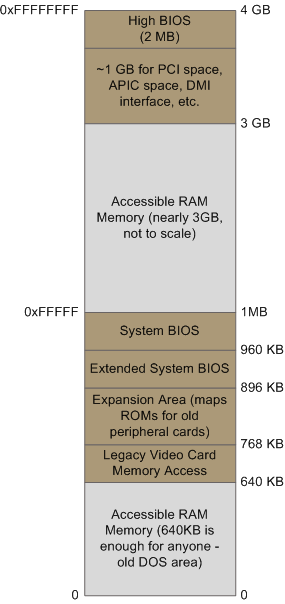
My conclusion is that there is no way to access all the 4GB of memory as RAM.
2016. január 14.
Notes on mounting and unmounting an Android Phone
If you do not have USB Mass Storage option any more on your Android phone to connect it to Ubuntu, but have Media Device (MTP) and Camera (PTP) instead, you have the following options:
A) You connect the phone with PTP, which works out of the box, but you'll only reach the camera related files from your device.
B) You try to hack around making MTP work to be able to reach all your files.
I went along with the latter case, and have not finished the process just yet, so I just list the pages that came along:
A) You connect the phone with PTP, which works out of the box, but you'll only reach the camera related files from your device.
B) You try to hack around making MTP work to be able to reach all your files.
I went along with the latter case, and have not finished the process just yet, so I just list the pages that came along:
- http://bernaerts.dyndns.org/linux/74-ubuntu/268-ubuntu-automount-any-mtp-device
- http://www.mysolutions.it/mounting-your-mtp-androids-sd-card-on-ubuntu/
- http://askubuntu.com/questions/87667/getting-mtp-enabled-devices-to-work-with-ubuntu
- http://ubuntuforums.org/showthread.php?t=2226702
- https://www.reddit.com/r/GalaxyNexus/comments/15uguz/automatic_mtp_mounting_in_ubuntu_guide/
2016. január 3.
Good-bye Ubuntu Phone
Today is the day when I gave up on the Ubuntu Phone. I sticked with it from May until the end of the year, updated it whenever there was a new update, but there was no significant improvement.
The main reason I quit for now is the lack of push notifications. I use my phone for communication, like probably most phone users. By sticking with the Ubuntu phone was like not having a smart phone at all. Only Gmail notifications worked, but I usually do the messaging on Facebook.
Another interestig problem was with the mobile internet connection.
I use a very limited connection for most of the time, because it is very cheap, and on an android phone I was able to stream a low bandwith internet radio with it, which is pretty much enough for me for the price. However this did not work on the Ubuntu Phone. When using this limited connection even the Gmail WebApp did not come through. (However gmail loaded through the browser, very-very slowly).
Lucky me, there is a way to convert the phone to Android, and this way at least the hardware is not wasted.
This is the tutorial: http://a25.co/ubuntu-phone-how-to-install-android/#fnref:1
The main reason I quit for now is the lack of push notifications. I use my phone for communication, like probably most phone users. By sticking with the Ubuntu phone was like not having a smart phone at all. Only Gmail notifications worked, but I usually do the messaging on Facebook.
Another interestig problem was with the mobile internet connection.
I use a very limited connection for most of the time, because it is very cheap, and on an android phone I was able to stream a low bandwith internet radio with it, which is pretty much enough for me for the price. However this did not work on the Ubuntu Phone. When using this limited connection even the Gmail WebApp did not come through. (However gmail loaded through the browser, very-very slowly).
Lucky me, there is a way to convert the phone to Android, and this way at least the hardware is not wasted.
This is the tutorial: http://a25.co/ubuntu-phone-how-to-install-android/#fnref:1
2015. október 2.
Feliratkozás:
Bejegyzések (Atom)